Member Portal — User Guide
A step-by-step walkthrough of everything you can do as a member. Sign in any time at newkirklytics.com/member — just your email, no password.
1 Signing in
No password to create or remember — you sign in with a secure link sent to your email.
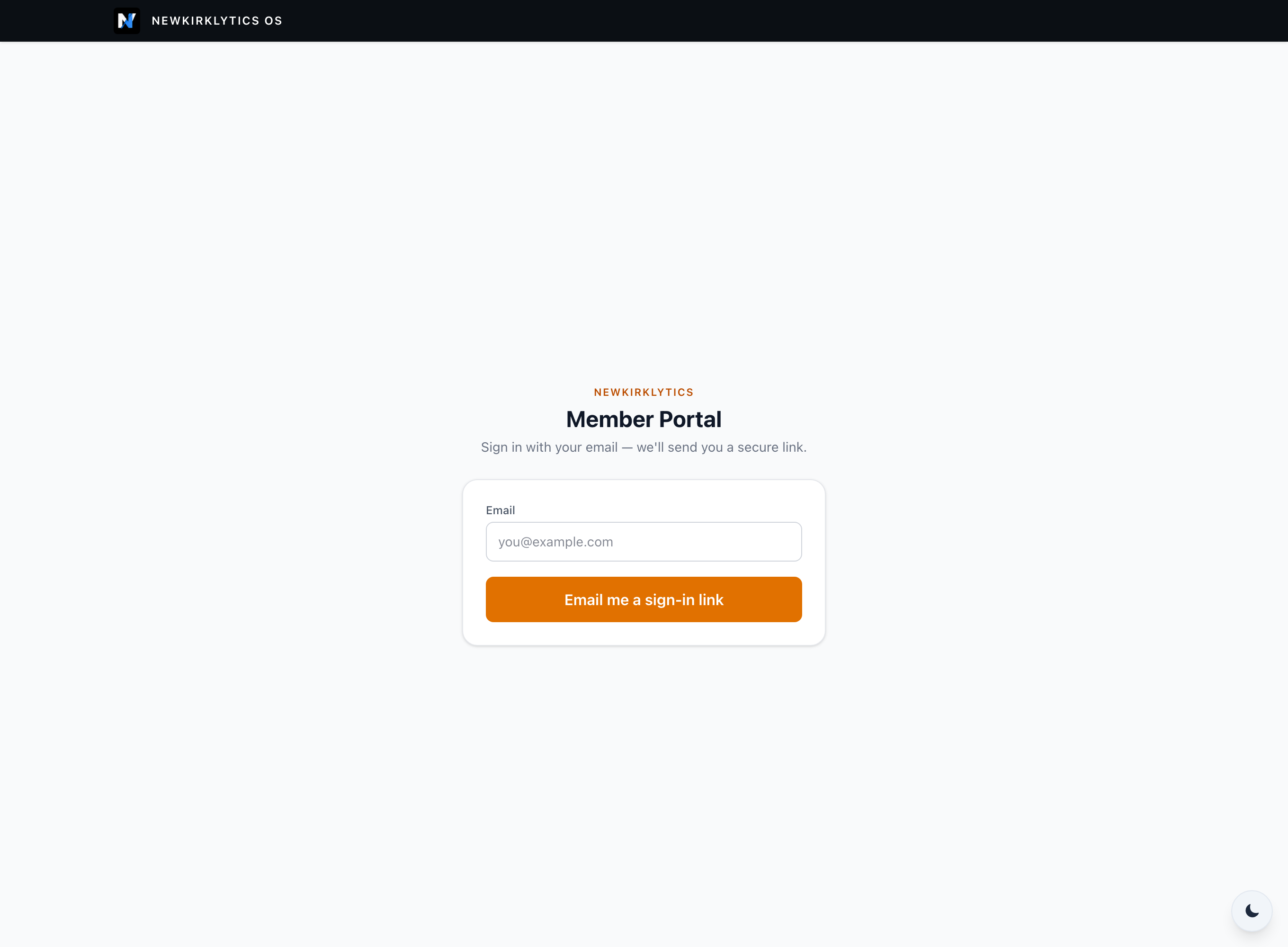
- Go to newkirklytics.com/member on your phone or computer.
- Type in the email address your network has on file for you.
- Click “Email me a sign-in link.”
- Open the email we send and tap the link — you're in.
2 Finding your way around
After you sign in, the left menu takes you to each area. On a phone, the same areas stack in one scroll.
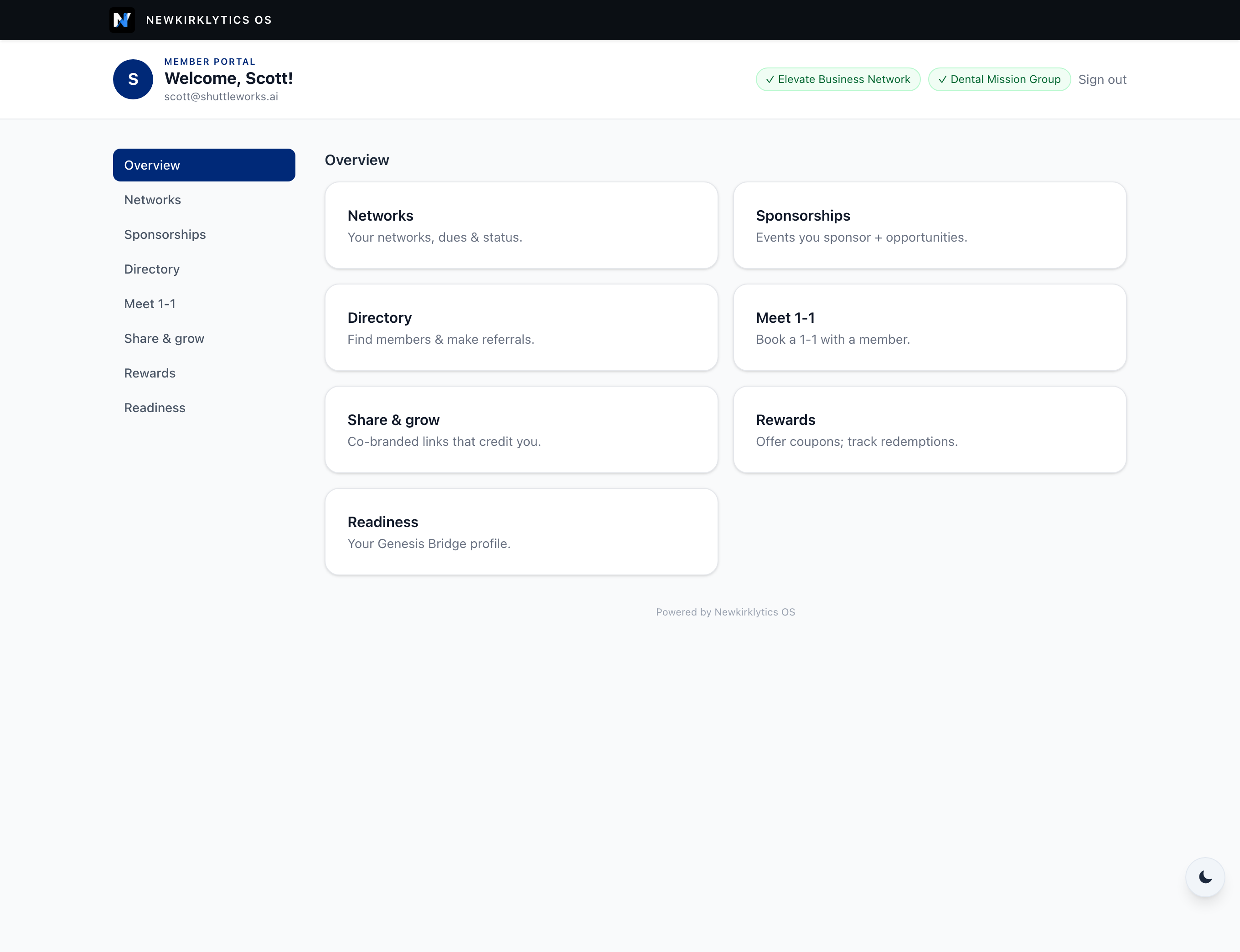
- Networks — your memberships, dues & status.
- My profile — how you appear in the directory: photo, headline, tags.
- Sponsorships — events you sponsor, plus open opportunities.
- Directory — find fellow members and make referrals.
- Meet 1-1 — book a one-on-one with another member.
- Share & grow — your co-branded sign-up links that credit you.
- Rewards — offer coupons and track who redeems them.
- Readiness — your Genesis Bridge profile.
3 Your networks & membership
See every network you belong to, your standing, and your dues.
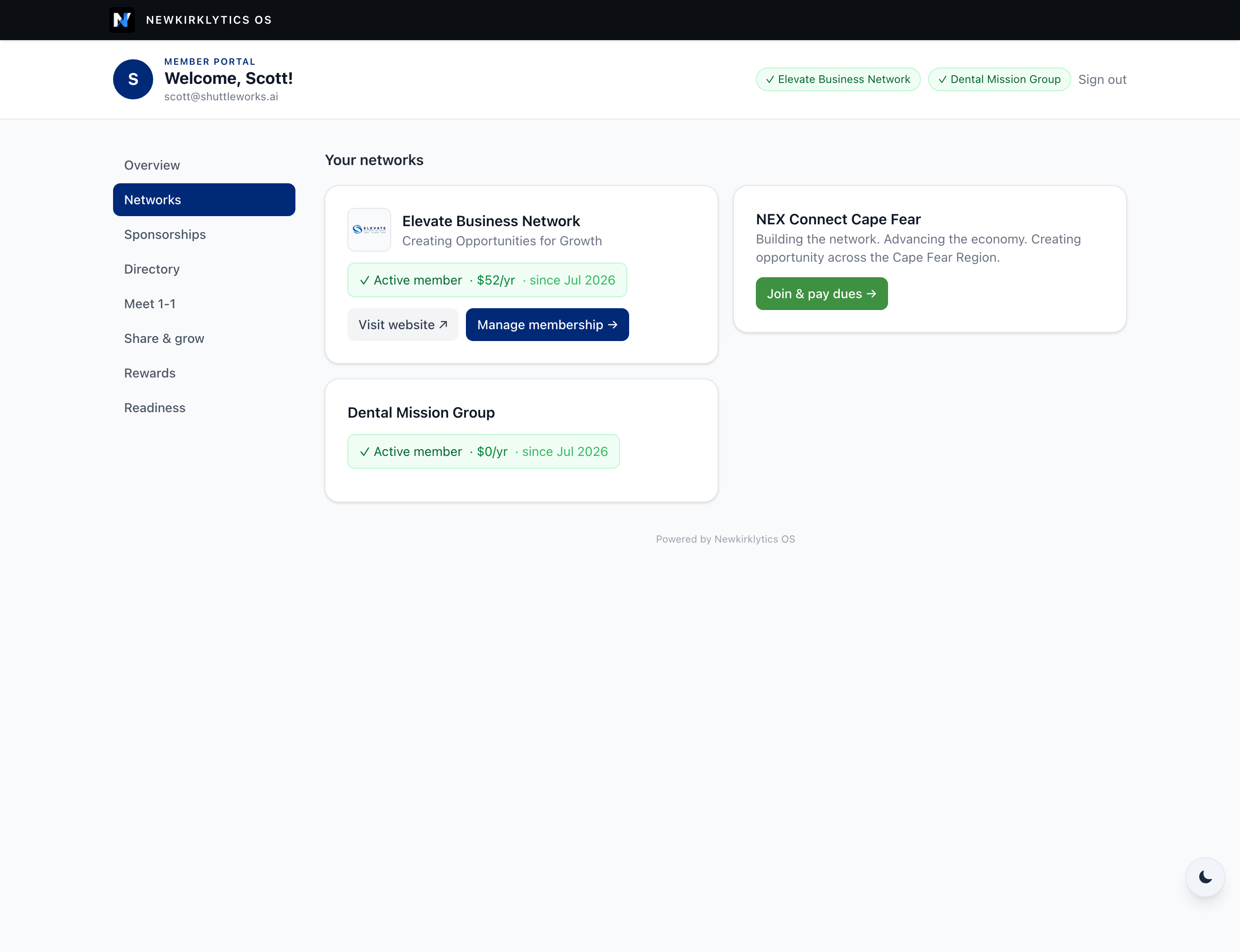
- Open Networks (called Membership if you're in just one).
- See your active status and, where your network charges dues, the amount and renewal terms.
- Where offered, use the join/renew button to pay by card or check.
- Tap 📲 Add card to put your membership card in Apple or Google Wallet — at events, staff scan it to check you in, no sign-in sheet needed.
4 Your profile & tags
Your directory listing is how other members find you — give it a face, a headline, and tags.
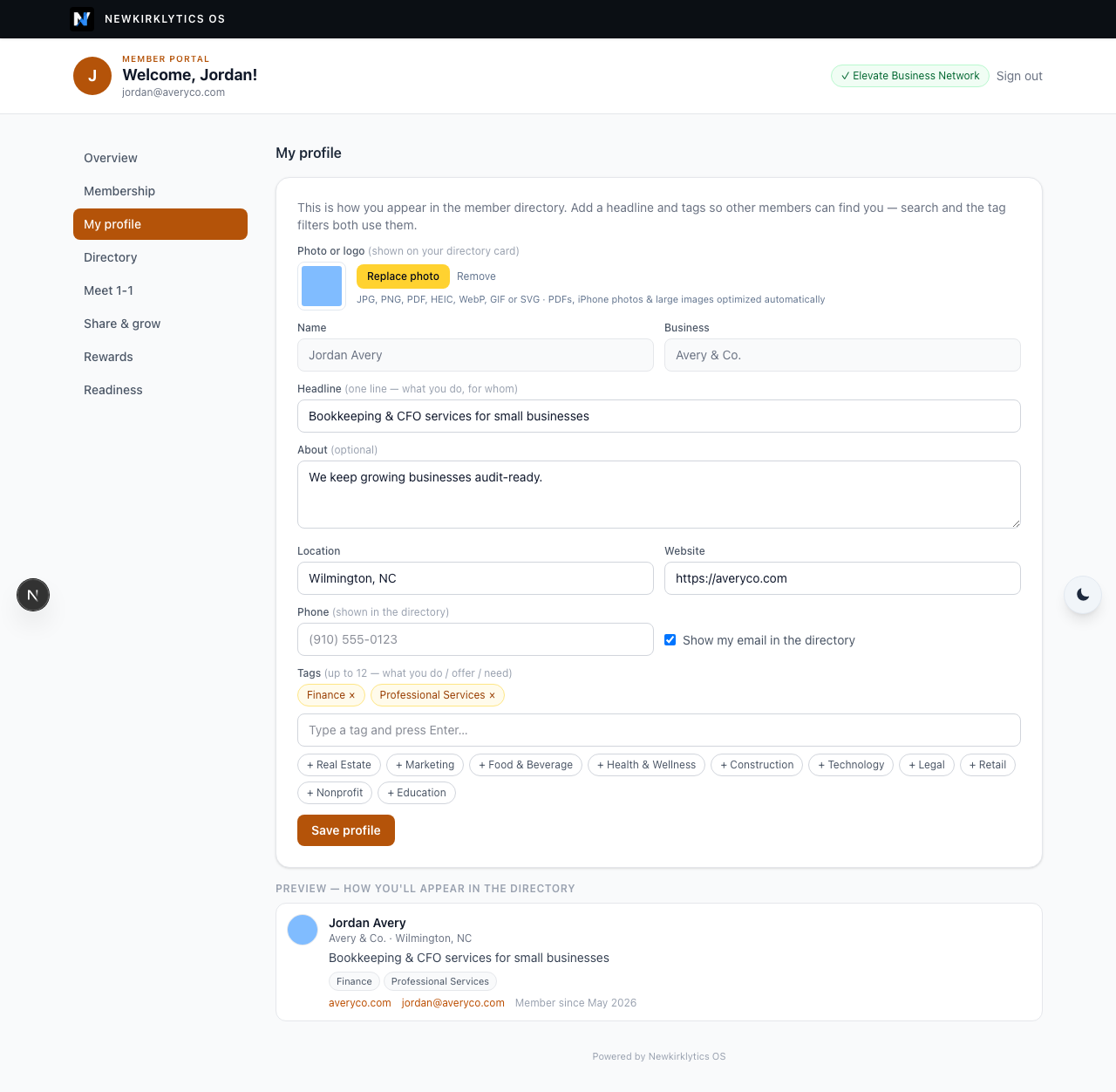
- Open My profile.
- Add a photo or logo (iPhone photos, PDFs and large images are optimized automatically).
- Write a one-line headline — what you do, for whom — and an optional About.
- Add your location, website and phone, and choose whether to show your email. Nothing is shown unless you put it here.
- Pick up to 12 tags — tap a suggestion or type your own and press Enter. Tags power the directory's search and filters, so choose words people would look for.
- Check the live preview at the bottom — it's exactly your directory card — then Save profile.
5 The member directory
Find the right member fast — search, sort, and filter by tags. Members-only.
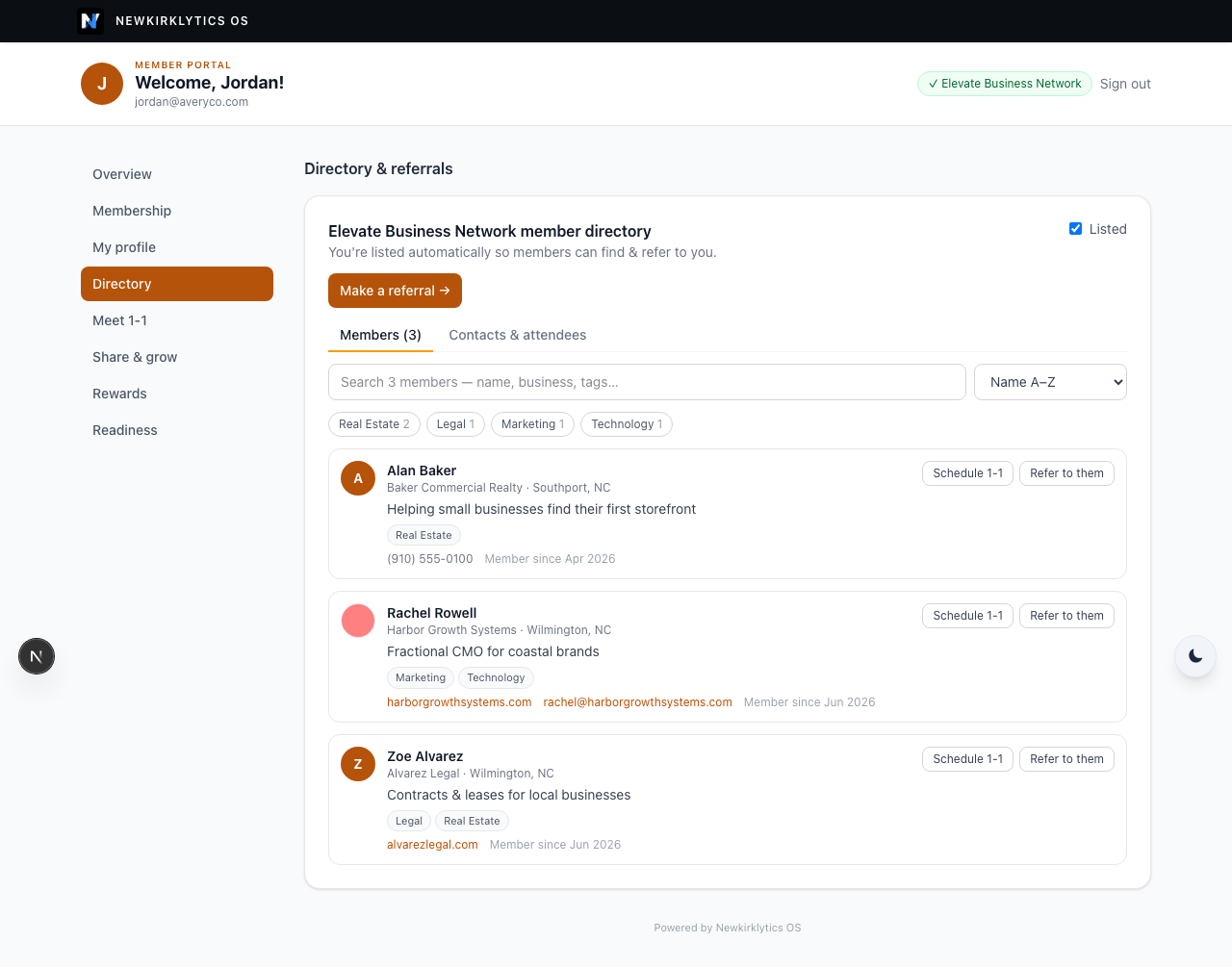
- Open Directory — each network's members load automatically.
- Search by name, business, headline, location or tag, and sort by name or newest members.
- Click tags in the tag cloud to filter; click more than one to narrow further. Tags on a member's card work too.
- Each card shows the member's photo, headline, tags, and whatever contact details they chose to share — plus Schedule 1-1 and Refer to them.
- Use the “Listed” checkbox (top-right of the network card) to stay in the directory or opt out any time.
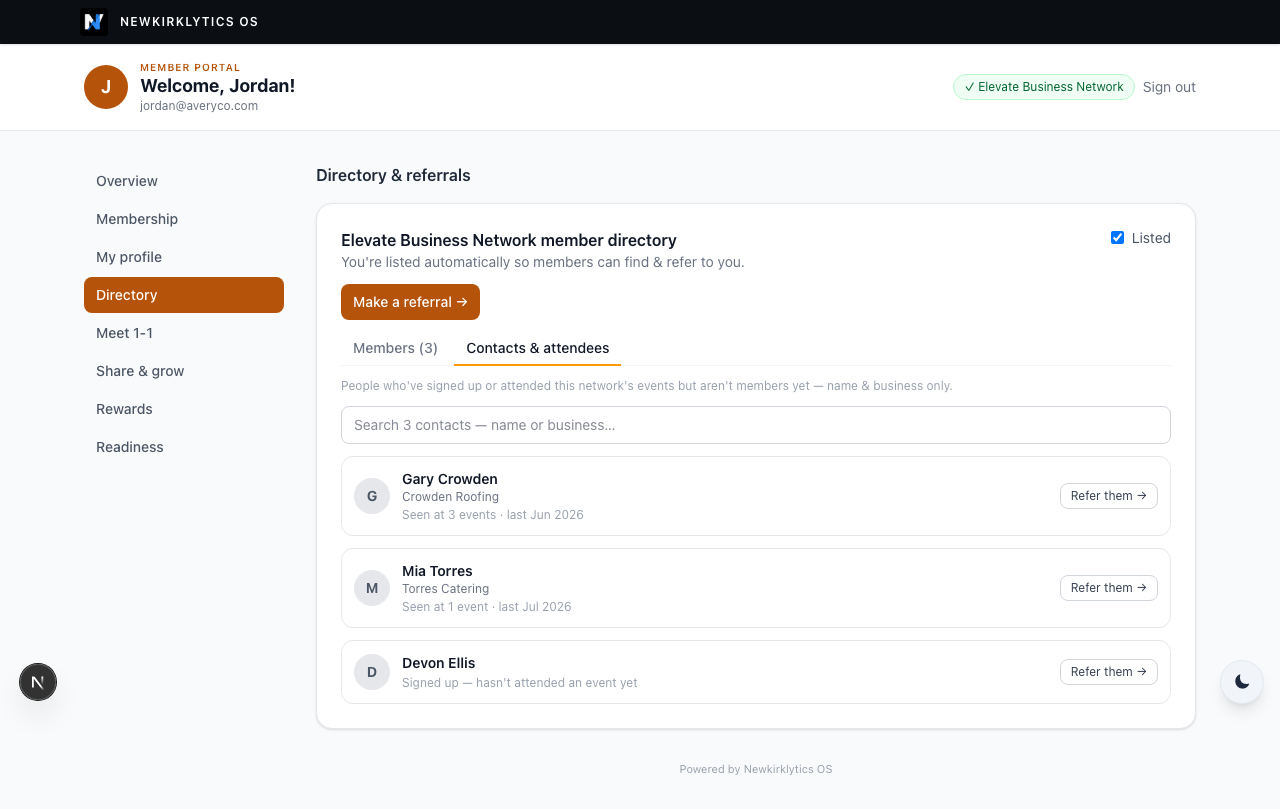
- Switch to the Contacts & attendees tab to search people who've signed up or attended your network's events but aren't members yet.
- You'll see their name, business, and event attendance only — contacts haven't joined, so no contact details are shared.
- Recognize someone worth connecting? “Refer them” opens the referral form with their details pre-filled.
6 Making a referral
Pass business to other members the right way — we send a warm introduction for you.
- In Directory, click “Make a referral.”
- Enter who you're referring (name required; their business, email, phone, and a note are optional).
- If you include their email, we send a warm intro on your behalf.
- Your referrals — and their outcomes — are saved so you can track them over time.
7 Your own sign-up pages
A co-branded page and QR code for each place you share — every sign-up is credited to you.
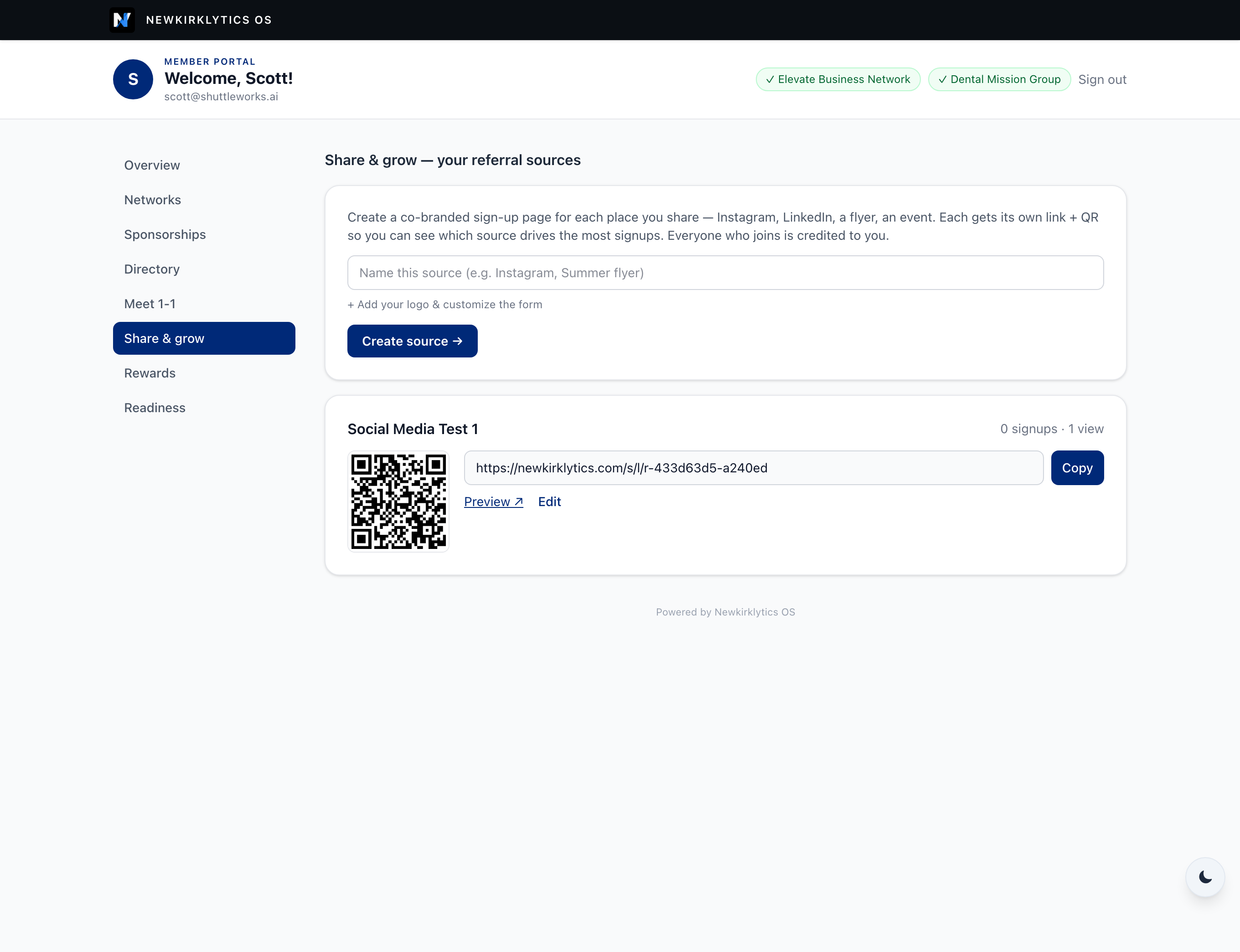
- Open Share & grow.
- Name the source (e.g. “Instagram,” “Summer flyer”) and click “Create source.”
- Optionally add your logo and customize the sign-up form.
- Share the link or print the QR code. Use Copy to grab the link.
- Watch views (scans) and sign-ups per source; Edit the page any time.
8 Coupons & offers
Turn a member benefit into a trackable, single-use offer.
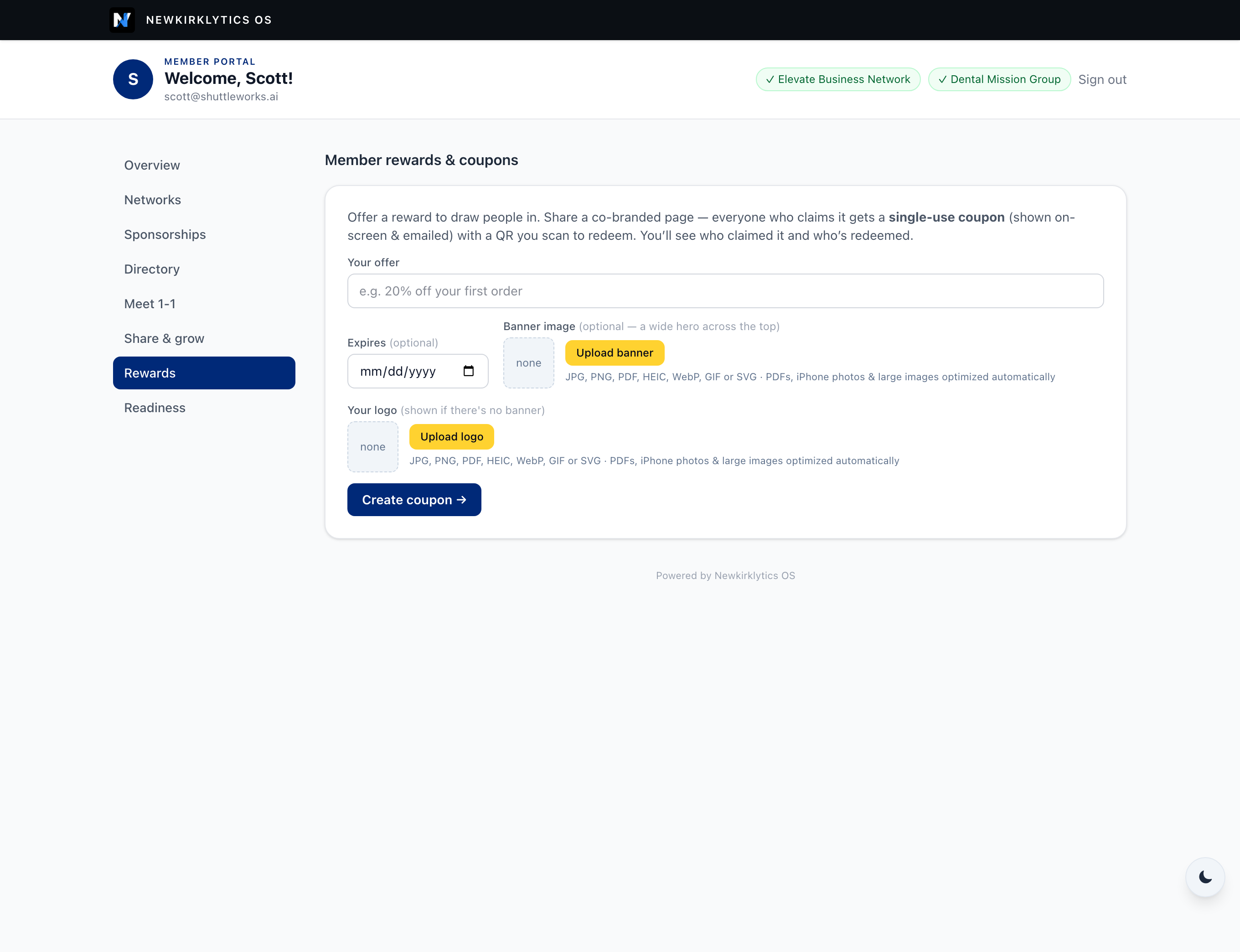
- Open Rewards.
- Type your offer (e.g. “20% off your first order”) and, if you like, an expiry date.
- Optionally add a banner and logo (iPhone photos, PDFs and large images are optimized automatically).
- Click “Create coupon.” Share the page — everyone who claims it gets a single-use QR coupon, on screen and by email.
- See who claimed it and who has redeemed.
9 Sponsoring events
Put your name behind the events you care about.
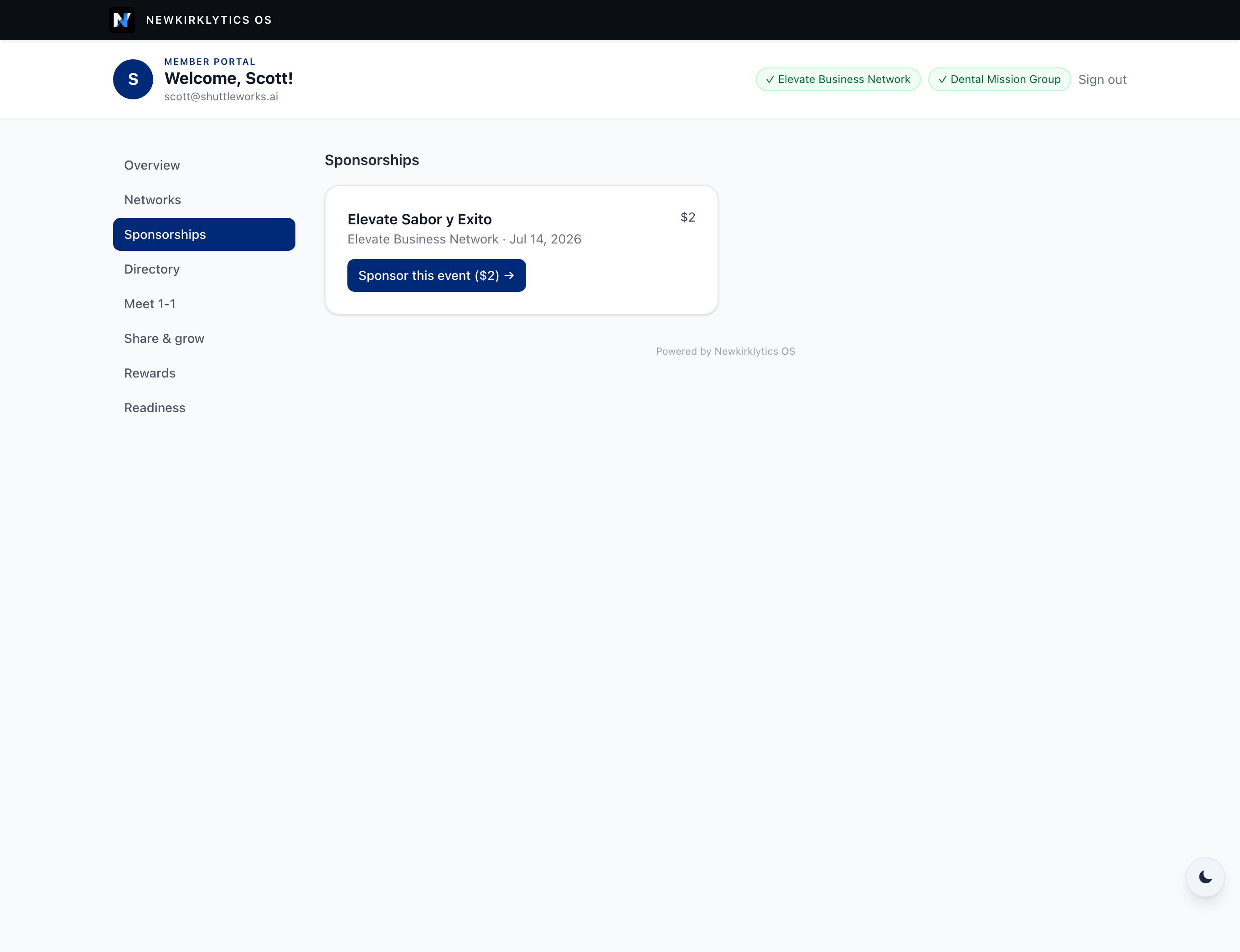
- Open Sponsorships.
- Browse open opportunities in your network(s).
- Click to sponsor and pay securely; unfinished ones can be resumed.
- Everything you've sponsored stays on record here.
10 Scheduling a 1-on-1
Book a meeting by simply describing when you're free.
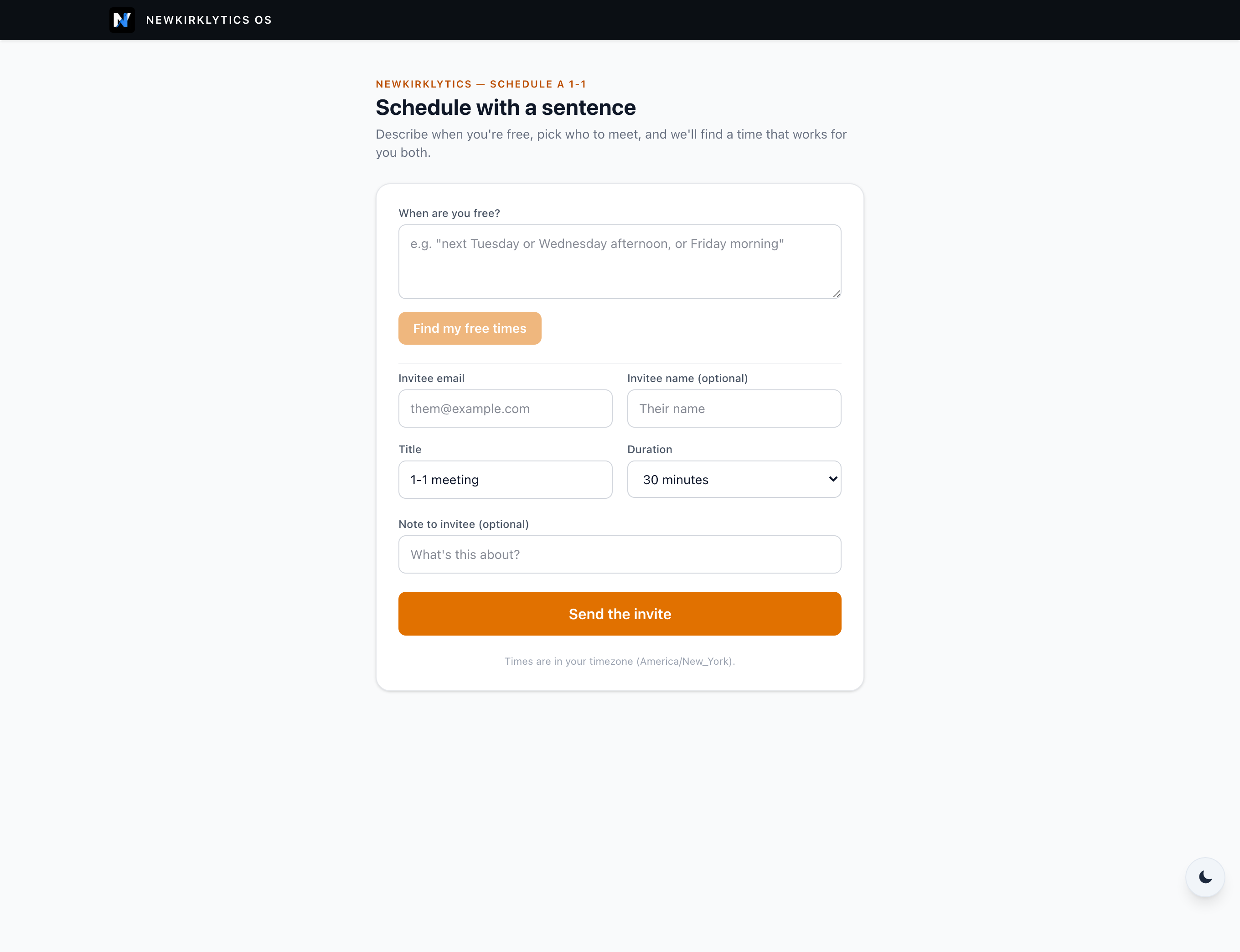
- Open Meet 1-1 (or the “Book a 1-1” link).
- In “When are you free?” type it plainly — e.g. “next Tuesday or Wednesday afternoon, or Friday morning.”
- Click “Find my free times.”
- Add the invitee's email (and name), a title, and a duration.
- Click “Send the invite.” When they reply with their availability, the earliest time you both share is booked automatically and you both get a calendar invite.
11 Readiness
Your on-ramp to keep building your business.
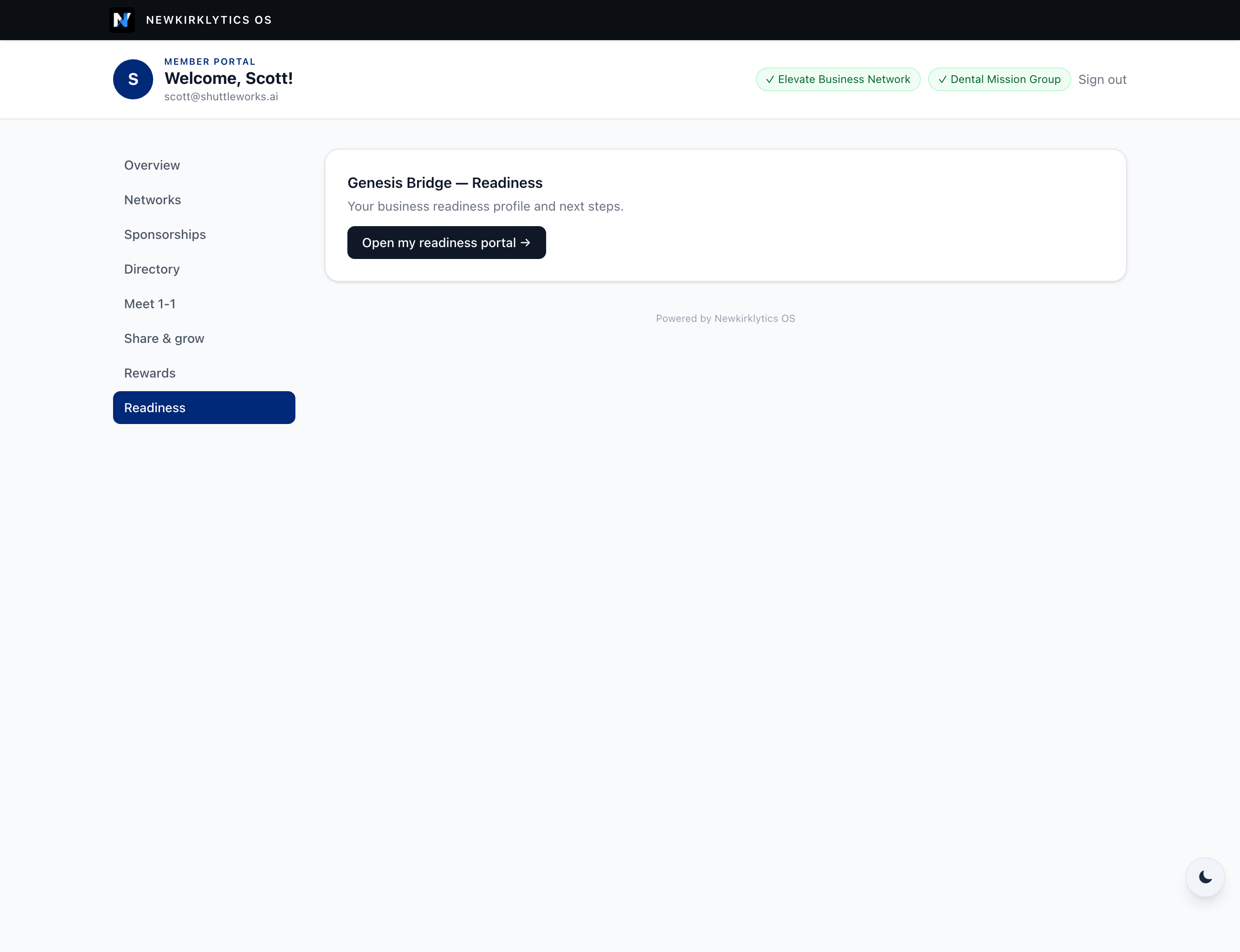
- Open Readiness.
- Follow the link to your Genesis Bridge readiness portal — your path into the wider Newkirklytics ecosystem.
Troubleshooting & FAQ
I didn't get the sign-in email.
Check your spam/junk folder, wait a minute, and request the link again. Make sure you're using the exact email your network has on file for you — that's the one tied to your membership.
My link says it's expired.
Sign-in links last 30 minutes and work once. Just go back to newkirklytics.com/member and request a fresh one.
Some areas from this guide aren't showing for me.
You only see the areas your network has turned on (for example, paid memberships or event sponsorships). Signing in, the directory, referrals, your own sign-up pages, coupons and 1-on-1 scheduling are available wherever you belong to a network.
The upload button won't take my photo.
You can upload JPG, PNG, PDF, HEIC (iPhone), WebP, GIF or SVG — flyers as PDFs, iPhone photos and large images are optimized for you automatically. If nothing happens, refresh the page and try again.
What do other members see about me?
Exactly what's on My profile — the live preview there is your directory card. Your email shows only if you turn on “Show my email,” and you can leave the directory entirely with the “Listed” checkbox. People who aren't members can't see the directory at all.
How do I sign out?
Use Sign out at the top-right. You'll need a fresh sign-in link next time.
Newkirklytics OS — Member Portal user guide. Screens shown are the live portal; the exact options you see depend on your network(s). Questions? Contact your network organizer.